
In Abomate you can create additional users so your team can manage contracts together. Each user gets their own login credentials and can perform different actions depending on their role.
Create a new user
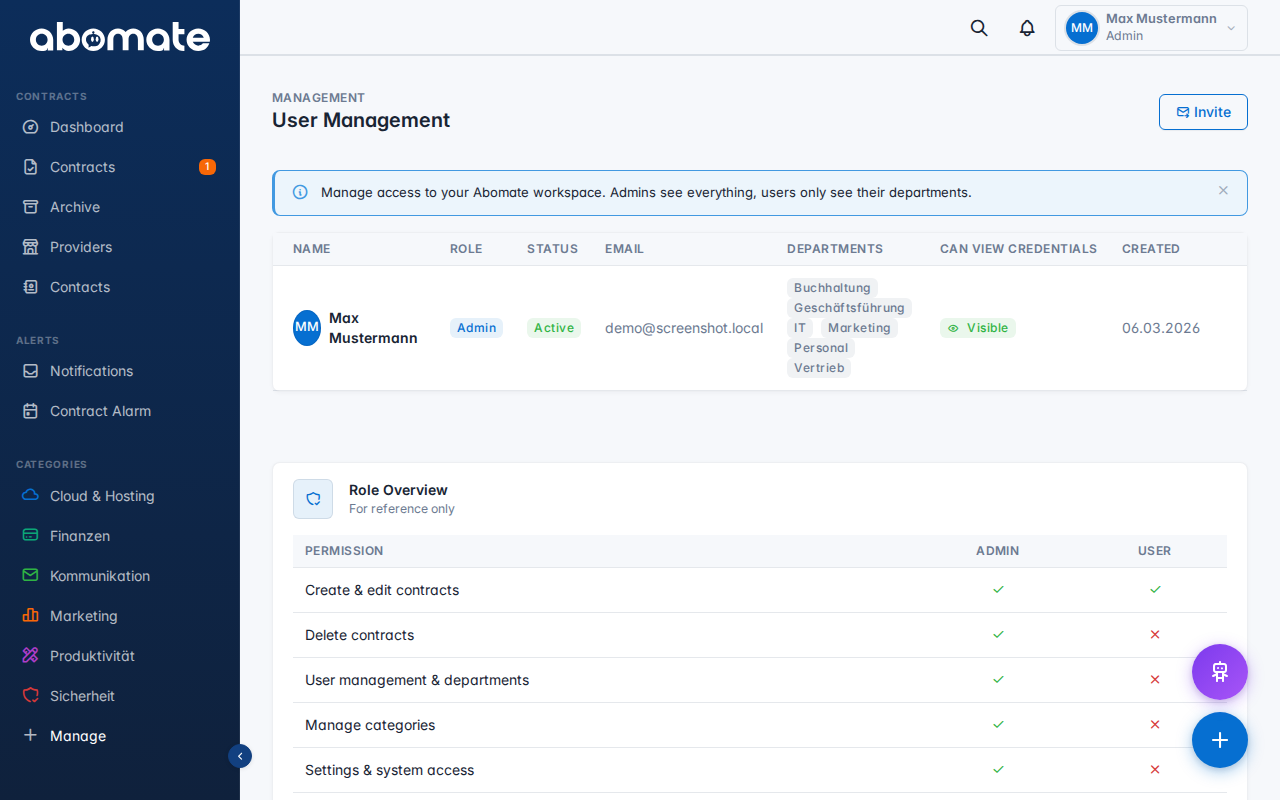
- Navigate to Users in the left sidebar
- Click New User in the top right corner
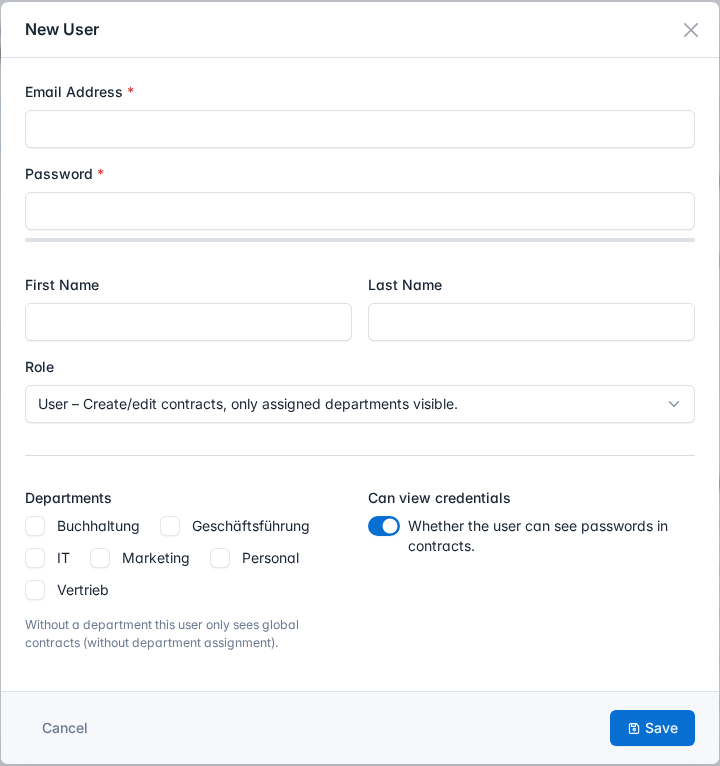
- Fill in the form:
- Email address – Also used as the login name
- Password – Choose a secure password for the new user
- First name & last name – Optional, displayed in the user list and profile
- Role – Choose between Admin and User (see details below)
- Departments – Assign one or more departments
- Can view credentials – Controls whether the user can see stored passwords in contracts
- Click Save
Note: Abomate does not send an automatic invitation email. Share the login credentials (email + password) with the new user manually.
Edit a user
Click the pencil icon next to the user in the list. In the modal you can change all fields – leave the password field empty to keep the existing password.
Use the camera icon to upload a profile picture (avatar). Supported formats: JPEG, PNG, WebP (max 2 MB).
Roles and permissions
Abomate has two roles with different permissions:
| Permission | Admin | User |
|---|---|---|
| Create & edit contracts | ✓ | ✓ |
| Delete contracts | ✓ | ✗ |
| Manage categories | ✓ | ✗ |
| User management & departments | ✓ | ✗ |
| Settings & system access | ✓ | ✗ |
Departments and visibility
Users with the User role can only see contracts assigned to their departments – plus contracts without any department assignment (global contracts). Admins always see all contracts.
Tip: If you don't assign a department to a user, they will only see global contracts without department assignment.
Delete a user
Click the trash icon next to the user and confirm deletion. You cannot delete your own account.
Limits by plan
| Plan | Admins | Users |
|---|---|---|
| Starter | 1 | 1 |
| Business | 3 | 10 |
| Pro | Unlimited | Unlimited |