
Export contracts
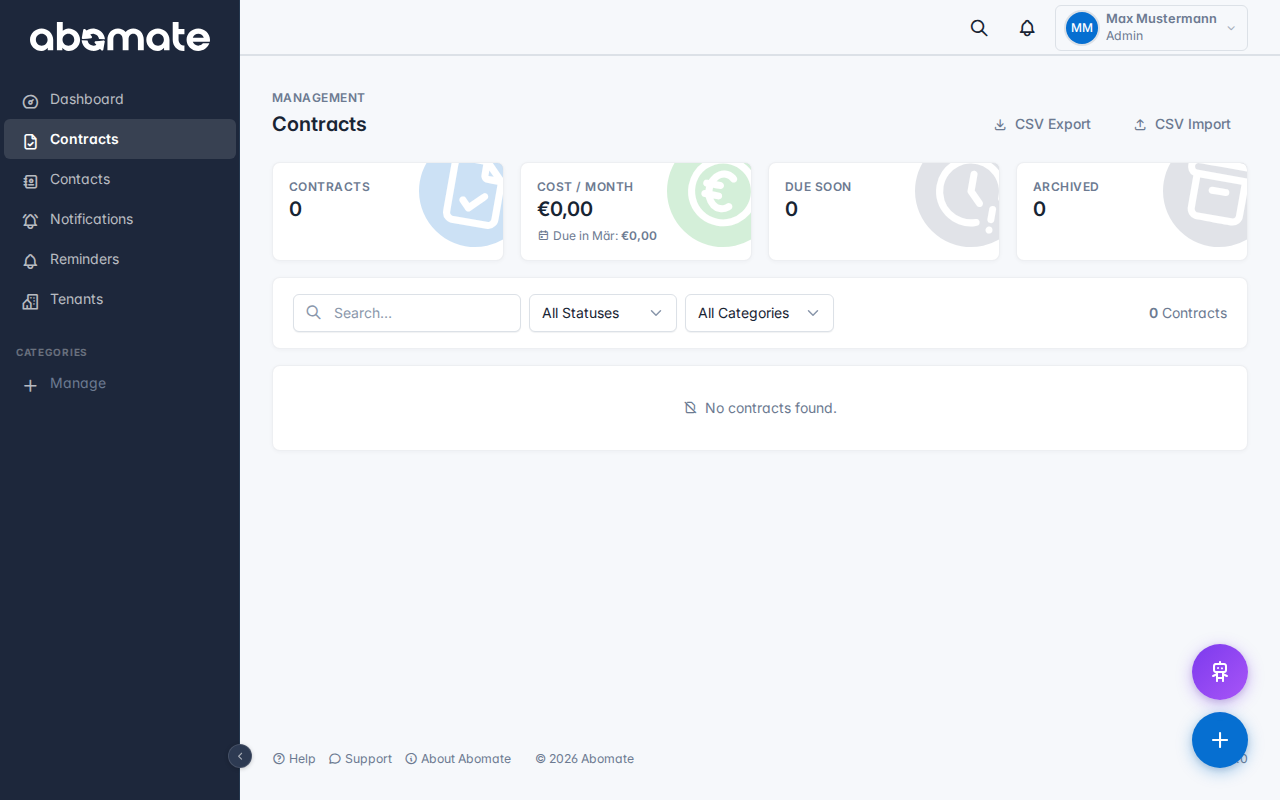
Click CSV Export in the contract list. All visible contracts (including active filters) are downloaded as a CSV file.

What is exported?
The export includes all fields of a contract:
- Name, provider, category, department, status
- Cost, currency, billing interval, sale price
- Start date, end date, notice period
- Contact person, notes
- Custom fields (Pro plan)
Tip: Use filters (status, category, department) before exporting to export only specific contracts.
Import contracts
- Click CSV Import in the contract list
- Download the import template – it contains all required columns with sample data
- Fill the template with your data and save as CSV (UTF-8, semicolon separator)
- Upload the filled CSV file
- Review the preview and confirm the import
Common problems
| Problem | Solution |
|---|---|
| Special characters broken | Save CSV file as UTF-8 (not ANSI/Windows-1252) |
| Date errors | Use format DD.MM.YYYY (e.g. 15.03.2026) |
| Required fields empty | Name and Category must be filled in every row |
| Category not found | Category name must match exactly as stored in Abomate |
Import template: Delete the sample rows from the template before importing. The first row (column headers) must remain.