
Create new contract
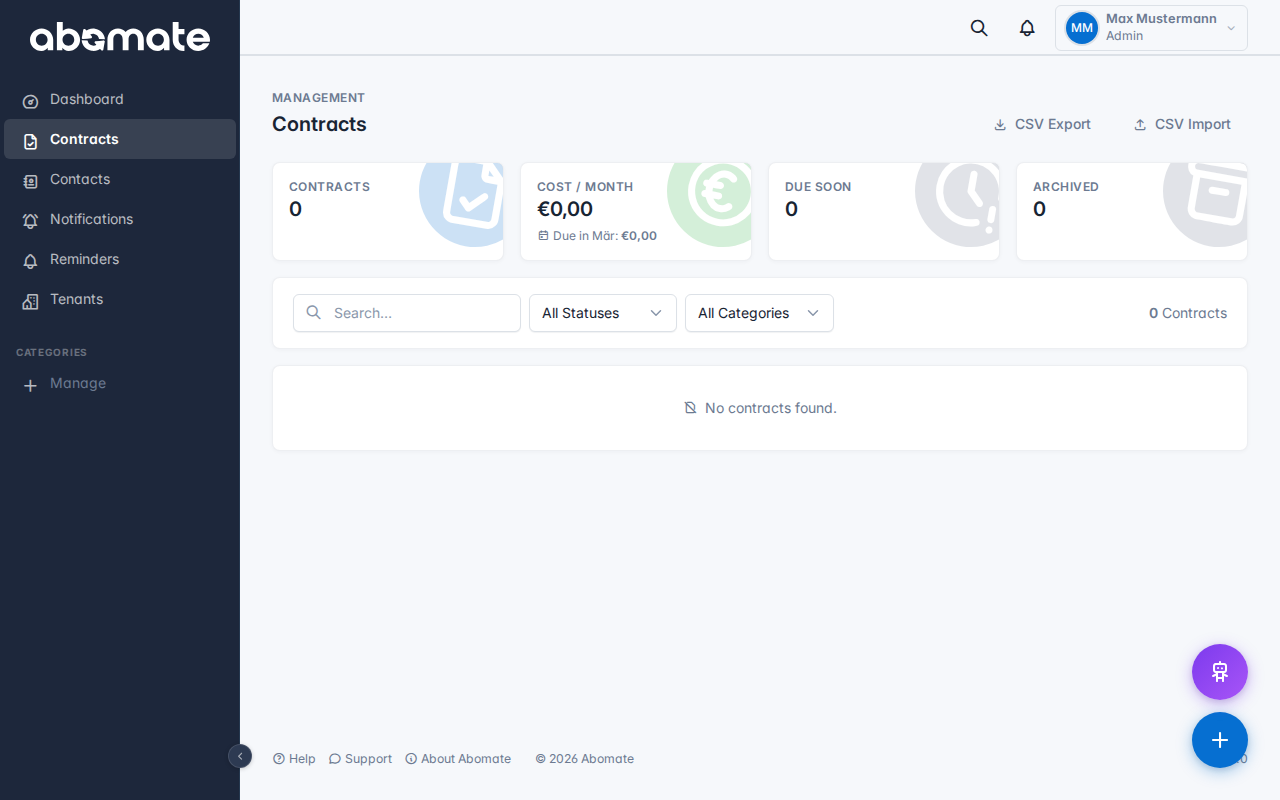
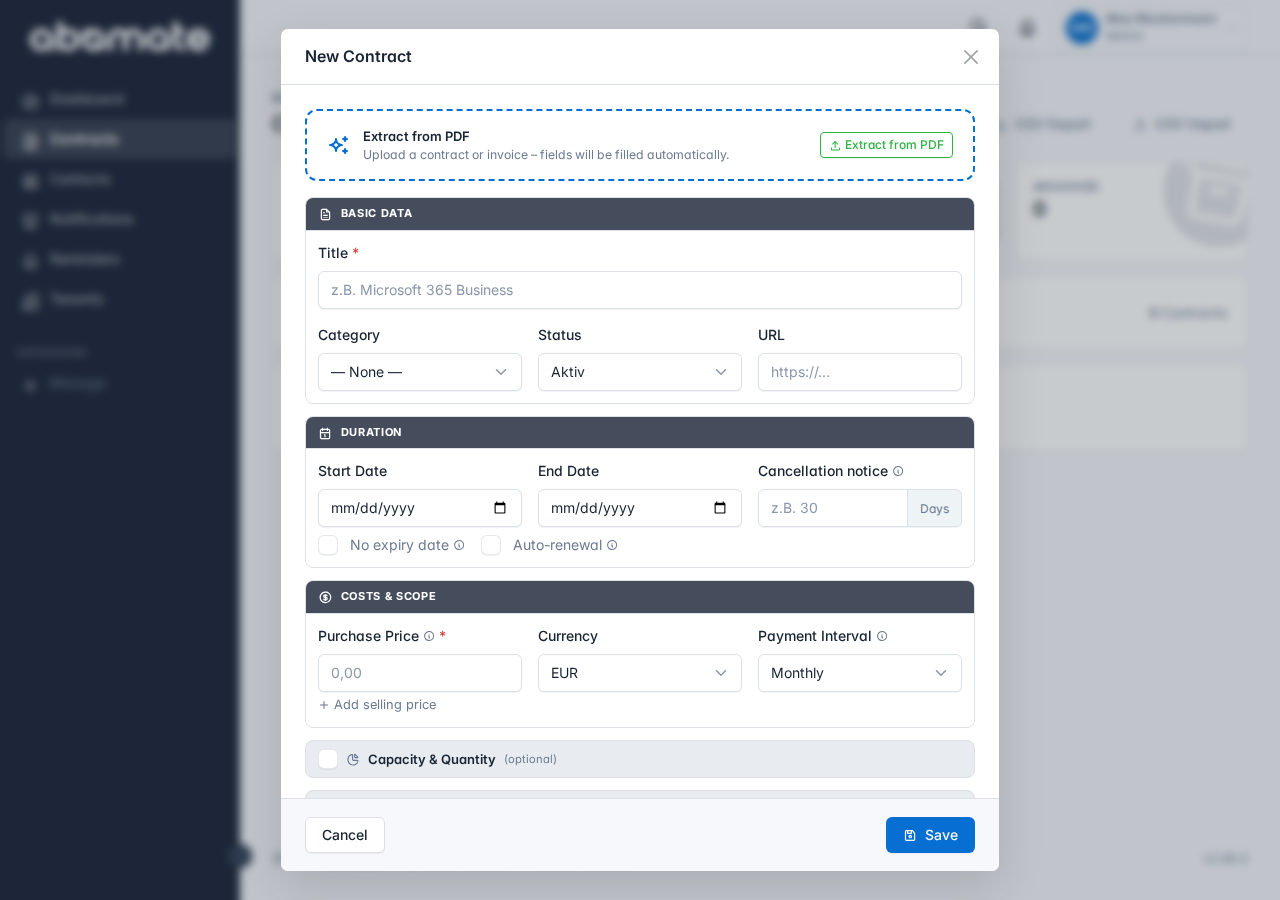
Click + New Contract in the contract list. The form opens as a modal.
Form fields
Required fields
- Name – Unique contract name (e.g. "Microsoft 365 Business")
- Category – Assign to a category. You can create new categories directly here.
General fields
| Field | Description |
|---|---|
| Provider | Name of the contract partner/provider |
| Status | Active, Cancelled, Expired or Draft |
| Cost | Amount and interval (monthly / yearly / one-time) |
| Currency | EUR, USD, GBP or CHF |
| Sale price | Optional resale price, e.g. for agencies |
| Start date | When does the contract begin? |
| End date | When does the contract expire? |
| Notice period | Days before end date for cancellation |
| Contact person | Responsible contact |
| Department | Assign to a department (controls visibility) |
| Notes | Free text field for comments |
Credentials
Optionally store credentials for the contract:
- Username – Login username
- Password – Stored securely encrypted
- License key – Serial number or activation code
- URL – Link to service or login page
Right-click menu: In the contract list you can right-click a contract to quickly copy username, password, license key or URL to clipboard.
Attach files
Below the form you can upload files via drag & drop (PDF, images). Maximum file size: 10 MB per file.
PDF recognition
When creating a contract you can upload a PDF. The AI automatically recognizes contract name, provider, costs, terms and more. Recognized data is pre-filled into the fields – you review and confirm.
Edit contract
Click a contract in the list, then click the pencil icon to edit fields. All fields can be modified afterwards.
Delete contract
Click the trash icon and confirm deletion. Deleted contracts cannot be restored.
Note: Only admins can delete contracts. Users with the "User" role can only create and edit contracts.