
Step by step to your first contract
Here is how to create your first contract in Abomate – in just a few minutes.
1. Open contracts page
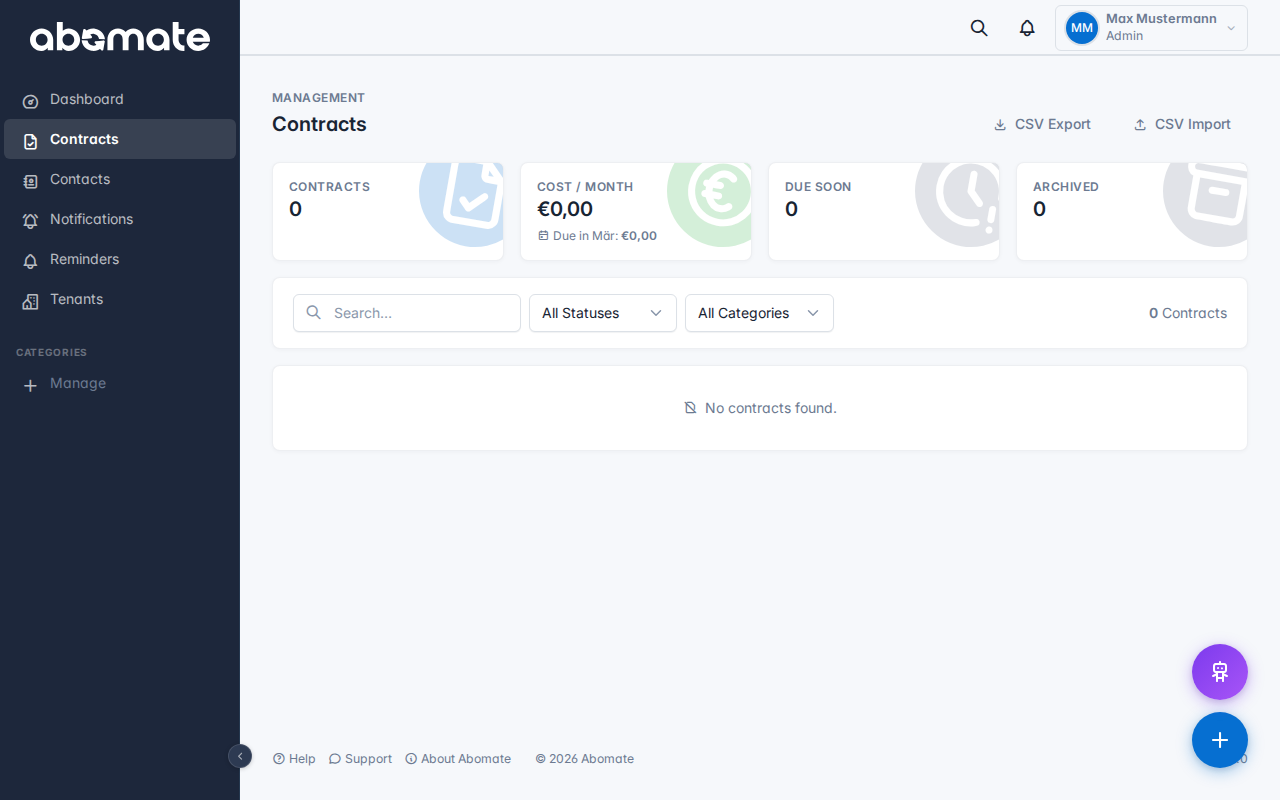
Click on Contracts in the sidebar. You will see the (still empty) contract list.
2. Create new contract
Click the + New Contract button in the top right. The contract form opens.
3. Enter data
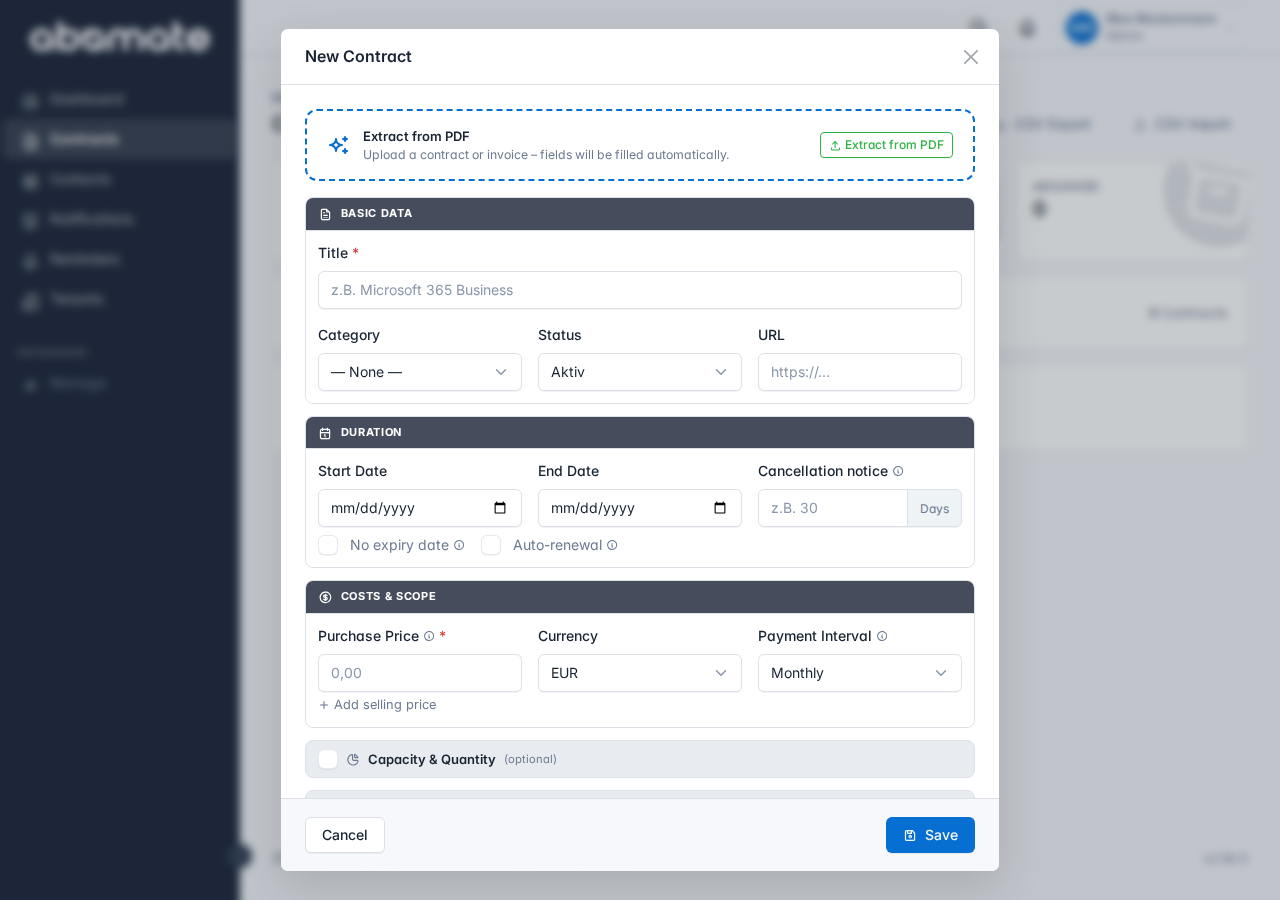
Fill in at least these fields:
| Field | Required | Description |
|---|---|---|
| Name | ✓ | Contract name, e.g. "Microsoft 365 Business" |
| Category | ✓ | Assign a category, e.g. "Cloud & SaaS" |
| Provider | – | Who provides the license? |
| Cost | – | Monthly, annual or one-time costs |
| Term | – | Start date, end date, notice period |
4. Optional: Attach file
You can upload the original contract as a PDF via drag & drop. Maximum file size: 10 MB per file.
AI Recognition: When you upload a PDF, the AI can automatically recognize contract name, provider, costs and terms, pre-filling the form fields. This feature is available from the Business plan.
5. Save
Click Save. The contract now appears in your list and is immediately visible on the dashboard.
Tip: You can also create contracts in bulk via CSV import – ideal when migrating from another solution.